![BH_Asset 06_Linear-ALT.png]](https://guides.bridgehaul.com/hs-fs/hubfs/BH_Asset%2006_Linear-ALT.png?height=40&name=BH_Asset%2006_Linear-ALT.png)
Table of Contents:
View Reporting and Daily Transactions
View Invoice and Pay
Card Management
Driver Management
Unit Pool Management
Real Time Management
Users
Welcome to Fuel-Control (our Fuel Customer Portal), your go-to platform to monitor and manage your fuel spend on the BridgeHaul - Mixed Fleet program. We launched Fuel-Control with the intent to provide customers with real-time data, helping you track fuel expenses, savings, network compliance, and other key KPIs. Here's a brief overview of the benefits:
-
Real-Time Data: Access fuel spend and savings data as it happens.
-
Custom Filtering: Customize your date range filters to view trends by rolling week or month.
-
Custom Reports: Export reports at your convenience with a simple click of the CSV button (on the details tab).
-
Invoice Management and Payments: View and pay invoices directly at your convenience from your Fuel-Control account.
We designed this tool to give you real-time insights into your fuel spend and savings, allowing you to access and analyze the data whenever it's convenient helping you make the most informed decisions for your business.
View Reporting and Daily Transactions
The main dashboard provides a clear, high-level overview of key account metrics, while the Transactions tab allows you to view detailed transaction information and drill down into specific activity as needed.
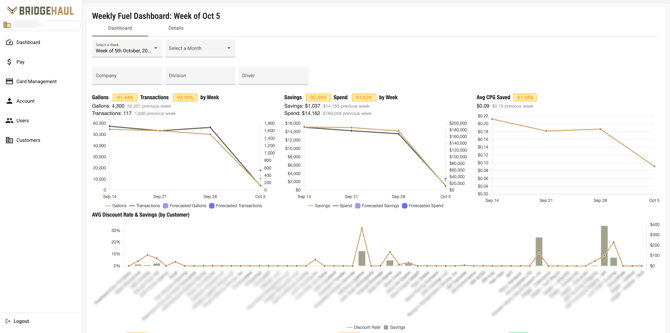
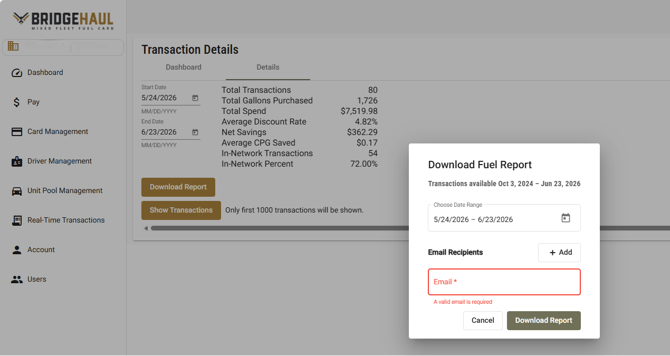
To access detailed transaction data, select Details and then click Download Report. From there, choose the desired date range and select the email address where you would like the report delivered. Once submitted, the report will be generated and sent to the selected email address.
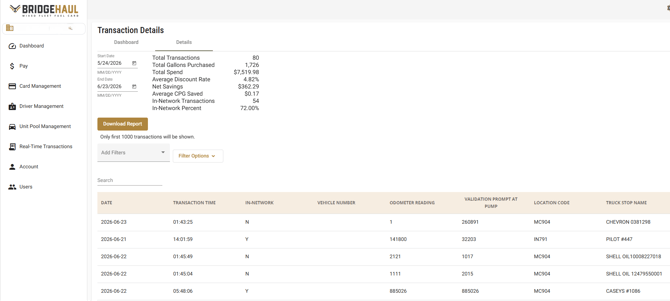
Once the report is received, you can sort, filter, and analyze the data based on your reporting needs. For quick access, the portal also provides an on-screen view of up to the first 1,000 transactions, allowing you to review recent activity without downloading a report.
View Invoice and Pay
When you receive your first invoice, log in to your portal to complete the initial payment.
To enable AutoPay, switch the AutoPay Off button to ON before processing your payment. Once payment is successfully completed, AutoPay will activate and all future invoices will be automatically drafted when issued.
You can also download out your invoice from this screen.
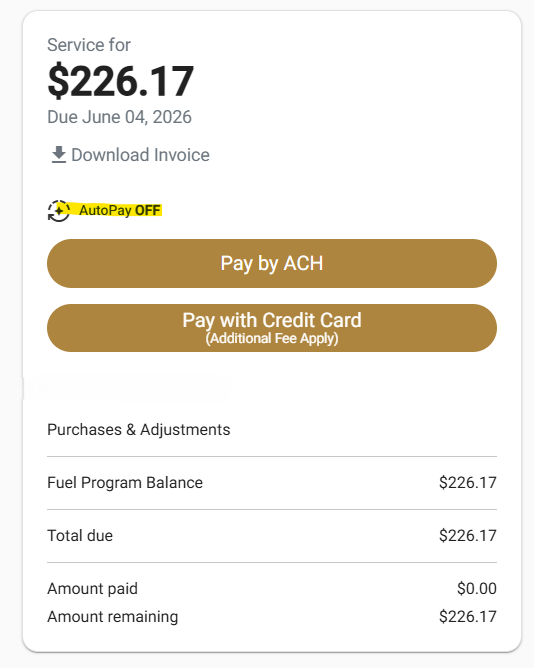
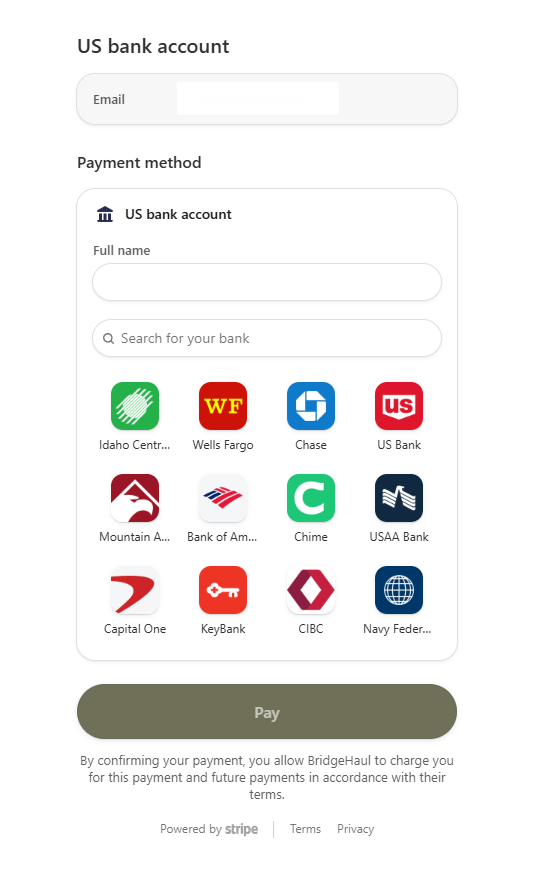
Pay by ACH will ask you to login to your bank institute to link your account through Stripe.
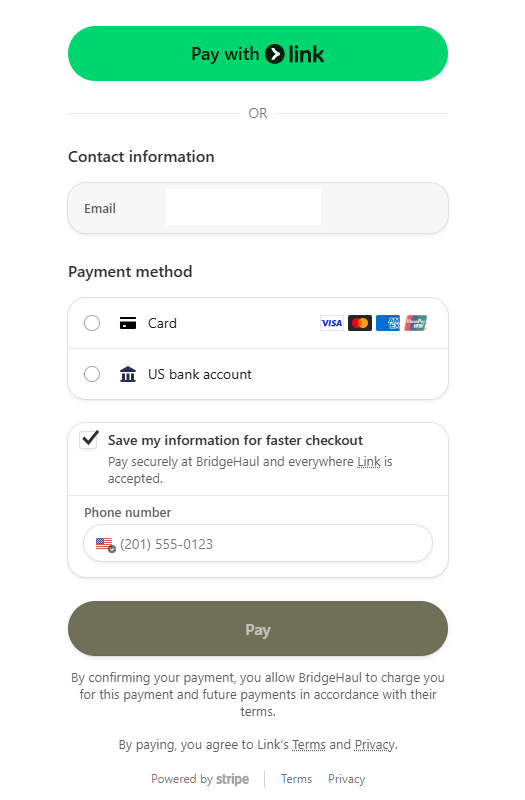
Pay with Credit card will allow you to pay with Link or will allow you to enter in your card information. Please note there is a Credit Card Convenience Fee of $7.99.
If you experience any issues with connecting your accounts, please contact us.
Card Management
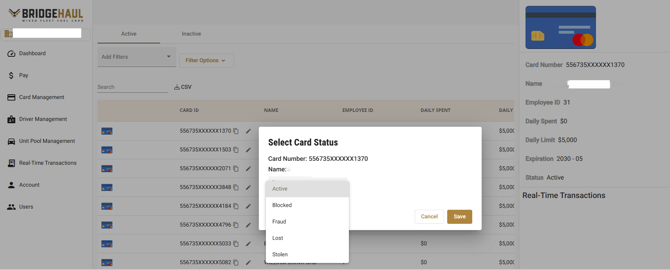
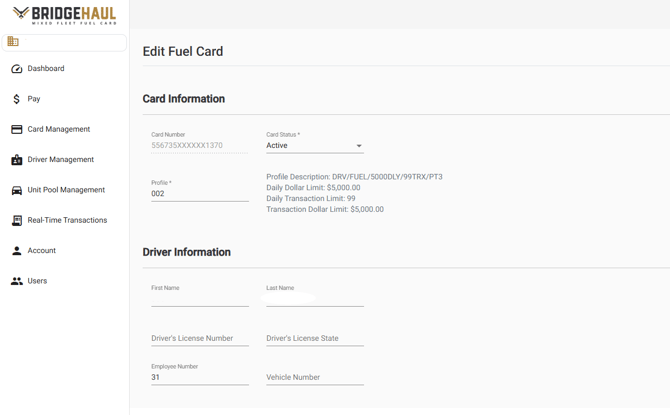
This section allows you to manage your cards by editing details and updating card status as needed. If a card is blocked, you can move it back to active at any time, unless it has been marked as Fraud, Lost, or Stolen.
Cards marked as Fraud, Lost, or Stolen cannot be unblocked.
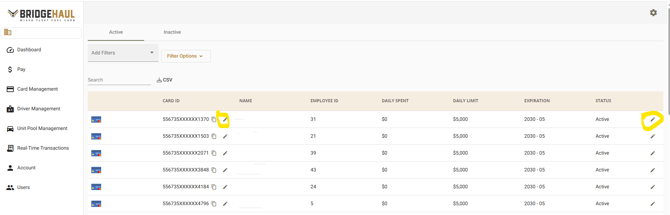
This section is also used to manage Driver IDs for Driver Cards. At the pump, drivers will be prompted to enter a 6-digit Driver ID for authorization. Each driver is assigned a unique ID.
If a Driver ID needs to be updated, it can be changed under Edit Fuel Card by updating the Employee Number field.
Card Replacement / Order Request
You have the ability to request replacement cards as well as additional cards through this tab as well, you will simply click on Order New Card and follow the prompts. We will email you with confirmation once the card has been ordered. For more detailed instructions click here.

Driver Management
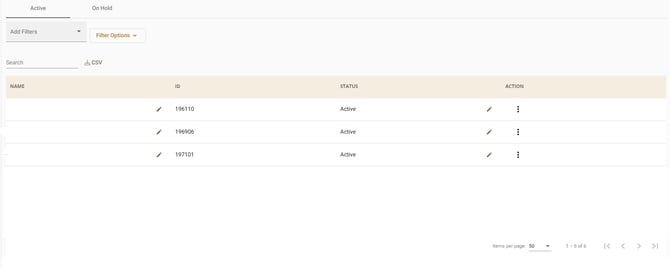
This tab is used to manage Vehicle Cards that are assigned to a Driver ID pool. These cards are assigned to the vehicle—not an individual driver—and must remain with the vehicle at all times.
When fueling, drivers will be prompted to enter a 6-digit Driver ID to authorize the transaction. This section allows you to manage the Driver ID pool by adding or removing Driver IDs as needed.
Note: If you need to update a Driver ID, you must first delete the existing Driver ID and then add it back with the new 6-digit Driver ID.
Unit Pool Management
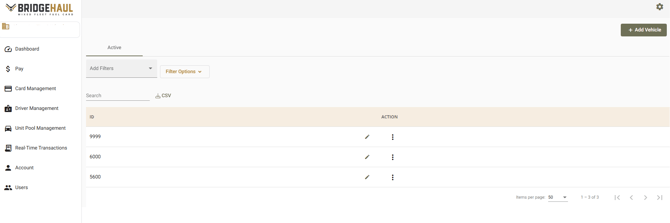
This tab is used for Driver Cards with a Unit Pool. At the pump, drivers will be prompted to enter a unit number instead of a Driver ID.
Drivers should enter the unit number of the vehicle they are operating that day. Unit numbers are managed in this section, where you can add or remove entries as needed.
Real Time Transactions
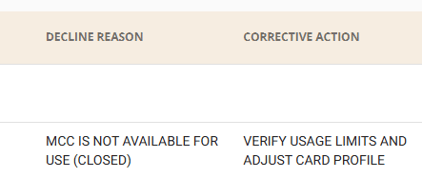
The Real-Time Transactions tab provides a quick view of recent card activity and is used to troubleshoot when a driver reports a declined card.
Each transaction will display the decline reason along with recommended steps to resolve the issue. If you have questions about a decline, please contact support.
-
This indicates the driver is attempting a purchase that exceeds your approved limits. To adjust limits, please email your request to fuel@bridgehaul.com

- This indicates the driver is attempting to purchase without using the required prompts. Make sure you are verifying the prompts with the driver.

- This indicates the driver is using the wrong Driver ID. Please verify with driver they are using the correct ID that has been assigned to them.

-
This indicates your card has been flagged for fraud. Please check your email and review the transactions that require verification.
If the charges are valid, respond “YES” to all in order to reactivate the card and restore usage. If the charges are not valid, respond “NO” to all and email fuel@bridgehaul.com to request a replacement card.
If no transaction appears and the card is still being declined, this may still indicate a fraud alert that requires action. If no fraud alert has been received, the driver should try another terminal or ask the attendant for assistance inside.
If issues continue please contact us.
Users
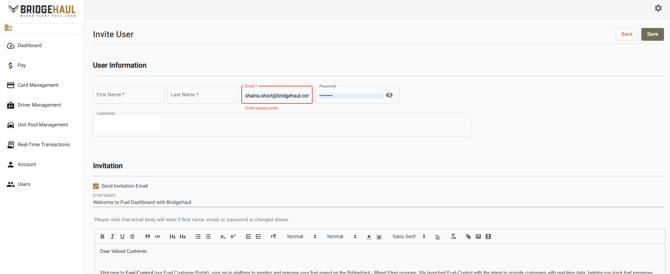
This section allows you to add additional users with access to your portal. Select Invite Customer User and complete the required fields.
An email invitation will be sent to the user, granting them access to the portal once they accept.
Our Support Team is available Monday through Friday, from 8:00 AM to 5:00 PM EST. If you need assistance, please contact us by email at fuel@bridgehaul.com or by phone at (470) 531-2021. We are happy to help with any questions or concerns.