![BH_Asset 06_Linear-ALT.png]](https://guides.bridgehaul.com/hs-fs/hubfs/BH_Asset%2006_Linear-ALT.png?height=40&name=BH_Asset%2006_Linear-ALT.png)
This guide will walk you through setting up the BridgeHaul Driver Mobile App for the Mixed Fleet Program.
Before you begin, please contact your Fleet Admin and ask them to provide the following information:
- Customer ID
- Card type: Vehicle Card or Driver Card
- Last 4 digits of your fuel card
You will need this information during the sign-up process.
Step 1: Download the BridgeHaul 2.0 App
From the App Store, Download the BridgeHaul 2.0 App.
Apple (iOS): https://apps.apple.com/us/app/bridgehaul-2-0/id6741335295
Google Play Store (Android): https://play.google.com/store/apps/details?id=com.bridgehaul.bhmobileapp&hl=en_US
Step 2: Open the App and Start Sign-Up Process
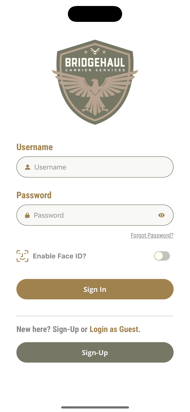
Once the app has downloaded, open the BridgeHaul 2.0 App.
At the bottom of the screen, click Sign-Up.
Step 3: Enter Your Name
Provide your Name (First and Last), then click Next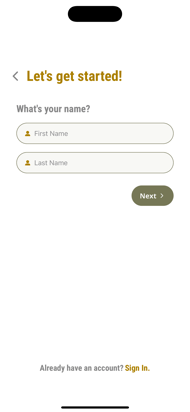
Step 4: Enter Your Email Address
Provide your Email, then click Next 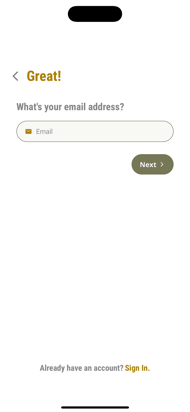
Step 5: Enter Your Phone Number
Provide Phone #, then click Next 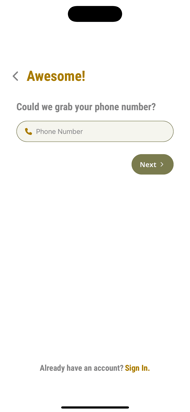
Step 6: Confirm You Are an Existing BridgeHaul Customer
Are you an Existing BridgeHaul Customer? Select, YES
%20-%20Copy.png?width=190&height=413&name=Simulator%20Screenshot%20-%20iPhone%2016%20Pro%20Max%20-%202026-06-22%20at%2016.56.31%20(1)%20-%20Copy.png)
Step 7: Select Fuel
On the Next Screen, Click Fuel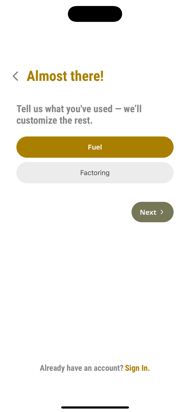
Step 8: Select the Card Program
Select the Card Program, Mixed Fleet Card
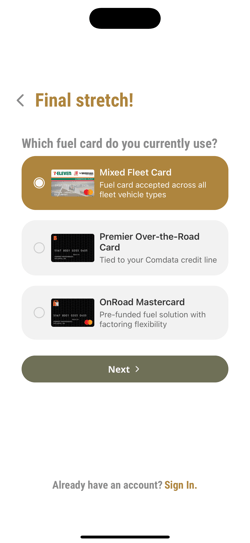
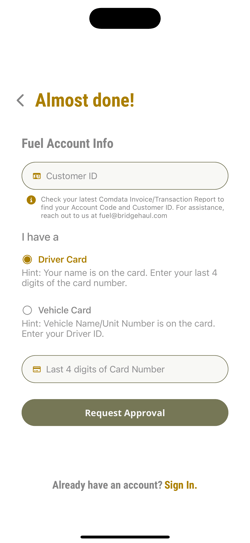
Step 9: Enter Your Fuel Account Information
Before completing this section, confirm the correct information with your Fleet Admin.
Enter the following details:
- Customer ID: Enter the Customer ID provided by your Fleet Admin.
- Type of Card: Select either Driver Card or Vehicle Card.
- If you select Vehicle Card, the app will prompt you to enter your Driver ID. This step verifies your identity and links you to that specific vehicle for the day. Once your Driver ID is validated, you will be authorized to use the vehicle’s fuel card for that day’s operations.
- If Driver Card is selected, you will enter Last 4 Digits of Card Number
- Last 4 Digits of Card Number: Enter the last 4 digits shown on your fuel card.
Step 10: Submit Your Request
After all information has been entered, click Request Approval.
Your request will be submitted for approval. Once approved, you will be able to access the fuel card features available through the BridgeHaul Driver Mobile App.