![BH_Asset 06_Linear-ALT.png]](https://guides.bridgehaul.com/hs-fs/hubfs/BH_Asset%2006_Linear-ALT.png?height=40&name=BH_Asset%2006_Linear-ALT.png)
Follow the steps below to download and calculate your year-end payment totals:
- Log in to your Carrier TMS account through your web browser: https://carrier.bridgehaul.com/#/auth/login
- From the main menu, navigate to Factoring, then select Factoring again.
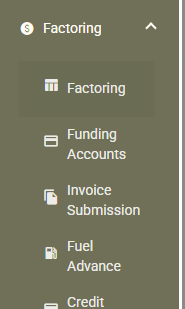
- Click on Schedules.
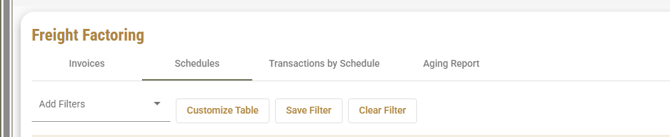
- Next to the search bar, click the CSV button to download your report.

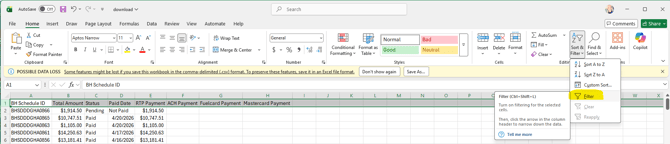
- Open the downloaded file in Excel.
- Highlight Row 1, then select Sort & Filter → Filter.
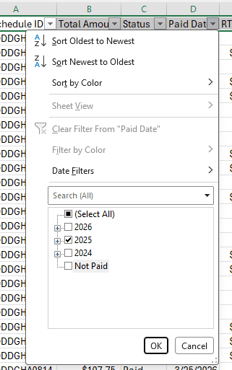
- Use the Paid Date dropdown to filter for the year you want to review.
- Scroll to the bottom of the report. For each column that contains payment amounts:
- Click the cell directly below the last entry
- Select AutoSum
- Press Enter to calculate the total
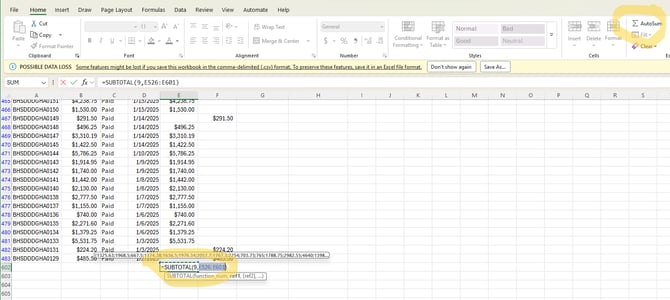
- Repeat the AutoSum step for all columns that contain dollar amounts to ensure all funds are included in your year-end total.
Please contact our customer care team with any further questions.
#470-531-2021 Customercare@bridgehaul.com