![BH_Asset 06_Linear-ALT.png]](https://guides.bridgehaul.com/hs-fs/hubfs/BH_Asset%2006_Linear-ALT.png?height=40&name=BH_Asset%2006_Linear-ALT.png)
Getting Started
Each driver using OneClick will need to download the BridgeHaul 2.0 Mobile App and log in using their assigned credentials.
Mobile App Download Links:
Getting Started
Once the driver is logged into the mobile app:
- Open the BridgeHaul 2.0 Mobile App.
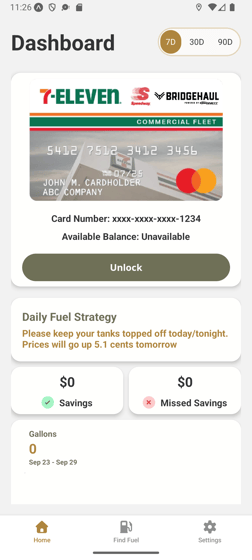
- Locate the assigned fuel card.
- The card will show as Locked.
- Tap and hold the Unlock button.
- The card will unlock for 10 minutes.
- Use the card at the fuel pump during the 10-minute window.
- Once the transaction is completed, the card will automatically lock again.
Vehicle Cards
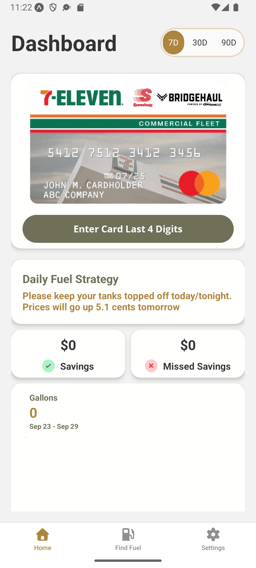
For accounts using vehicle cards, drivers can select or enter the vehicle card they are using for that day.
Once the appropriate card is selected, the same OneClick process as above applies.
This allows drivers to use the appropriate vehicle card while maintaining the added fraud protection provided by OneClick.
Important Information
- The card must be unlocked before attempting the fuel transaction.
- The unlock period lasts 10 minutes.
- The card will lock again after the transaction is completed.
- Drivers must have the BridgeHaul 2.0 Mobile App to use OneClick.
- OneClick is designed to provide an additional layer of protection against unauthorized card use.
If you have questions about OneClick or need assistance getting your drivers set up, contact BridgeHaul Fuel Support:
📧 Fuel@bridgehaul.com
📞 470-531-2021
Monday–Friday | 8:00 AM–5:00 PM EST